前情提要
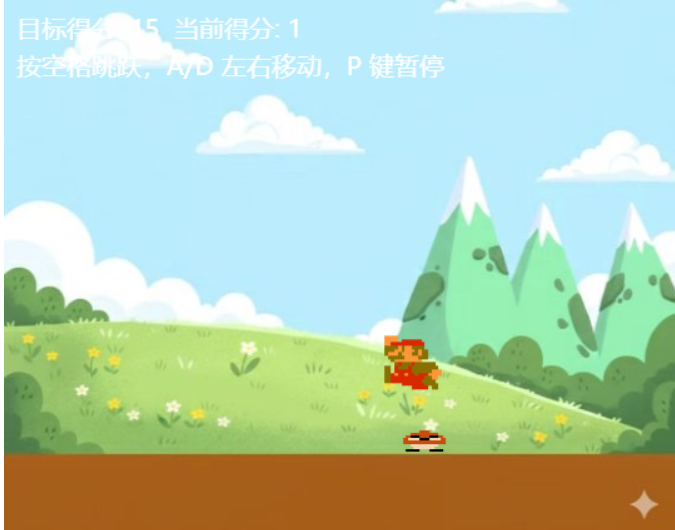
经过前面九节课的学习,我们已经实现了游戏的核心功能:角色移动、跳跃、重力系统、敌人 AI、碰撞检测、动画系统等等。
这最后一节课,我们来完善游戏逻辑,添加游戏结束、胜利条件、重新开始等功能,让它成为一个完整的游戏。
添加游戏状态
首先,我们需要一个变量来记录游戏的状态:
const gameData = {
  currentTimeStamp: new Date().getTime(),
  score: 0,
  isGameOver: false, // 游戏是否结束
  targetScore: 15, // 目标分数
};
游戏失败:被敌人撞到
当角色被敌人撞到时,游戏应该结束:
function update(modifier) {
  // 如果游戏已经结束,就不再更新游戏逻辑
  if (gameData.isGameOver) {
    // 但是可以监听重新开始的按键
    if ("Enter" in keysDown) {
      resetGame();
    }
    return;
  }

  // ... 其他更新逻辑 ...

  // 碰撞检测
  if (enemy.isAlive && isCollision(player, enemy)) {
    if (isStampOn(player, enemy)) {
      setState(enemy, "dead");
      enemy.isAlive = false;
      player.ySpeed = 200;
      gameData.score++;

      // 检查是否达到胜利条件
      if (gameData.score >= gameData.targetScore) {
        gameData.isGameOver = true;
        console.log("恭喜过关!");
      } else {
        setTimeout(() => {
          respawnEnemy();
          setState(enemy, "walk");
        }, 1000);
      }
    } else {
      // 被敌人撞到,游戏失败
      gameData.isGameOver = true;
      setState(player, "dead"); // 如果有死亡动画的话
      console.log("游戏结束!");
    }
  }
}
重置游戏
当游戏结束后,玩家应该能够重新开始游戏:
function resetGame() {
  // 重置游戏数据
  gameData.score = 0;
  gameData.isGameOver = false;

  // 重置角色
  player.x = cvWidth / 2;
  player.y = floorY;
  player.ySpeed = 0;
  player.airCount = 0;
  setState(player, "stand");

  // 重置敌人
  enemy.x = 500;
  enemy.y = floorY;
  enemy.ySpeed = 0;
  enemy.moveSpeed = 50; // 重置速度
  enemy.isAlive = true;
  setState(enemy, "walk");
}
绘制游戏结束画面
在 drawImg 函数中,当游戏结束时显示特殊的画面:
function drawImg() {
  ctx.clearRect(0, 0, cvWidth, cvHeight);

  // 绘制背景
  ctx.drawImage(backgroundImg, 0, 0, cvWidth, cvHeight);

  // 绘制敌人
  if (enemy.isAlive) {
    const enemyImg = getCurrentFrame(enemy);
    ctx.drawImage(
      enemyImg,
      enemy.x - enemyImg.width / 2,
      enemy.y - enemyImg.height / 2
    );
  }

  // 绘制角色
  const playerImg = getCurrentFrame(player);
  ctx.drawImage(
    playerImg,
    player.x - playerImg.width / 2,
    player.y - playerImg.height / 2
  );

  // 绘制分数
  ctx.font = "20px 微软雅黑";
  ctx.fillStyle = "#fff";
  ctx.fillText(
    "目标得分: " + gameData.targetScore + "  当前得分: " + gameData.score,
    10,
    30
  );

  // 如果游戏结束,显示结束画面
  if (gameData.isGameOver) {
    // 半透明黑色遮罩
    ctx.fillStyle = "rgba(0, 0, 0, 0.7)";
    ctx.fillRect(0, 0, cvWidth, cvHeight);

    // 判断是胜利还是失败
    if (gameData.score >= gameData.targetScore) {
      // 胜利
      ctx.font = "40px 微软雅黑";
      ctx.fillStyle = "#2A2";
      ctx.fillText("恭喜过关!", 180, 200);
    } else {
      // 失败
      ctx.font = "40px 微软雅黑";
      ctx.fillStyle = "#A22";
      ctx.fillText("游戏结束!", 180, 200);
    }

    // 提示重新开始
    ctx.font = "25px 微软雅黑";
    ctx.fillStyle = "#fff";
    ctx.fillText("按 Enter 键重新开始", 140, 260);
  }
}
添加点击重新开始
除了按键,我们还可以让玩家点击画面来重新开始:
function init() {
  then = Date.now();
  createCanvas(cvWidth, cvHeight);

  // 添加点击事件监听
  canvas.addEventListener("click", function () {
    if (gameData.isGameOver) {
      resetGame();
    }
  });

  setInterval(main, 1);
}
然后在游戏结束画面上添加提示:
if (gameData.isGameOver) {
  // ... 其他绘制代码 ...

  ctx.font = "25px 微软雅黑";
  ctx.fillStyle = "#fff";
  ctx.fillText("按 Enter 键或点击画面重新开始", 80, 260);
}
添加暂停功能
我们还可以添加一个暂停功能:
const gameData = {
  currentTimeStamp: new Date().getTime(),
  score: 0,
  isGameOver: false,
  isPaused: false, // 是否暂停
  targetScore: 15,
};
监听暂停按键(比如 P 键):
addEventListener("keydown", function (e) {
  keysDown[e.code] = true;

  // 按 P 键暂停/继续
  if (e.code === "KeyP" && !gameData.isGameOver) {
    gameData.isPaused = !gameData.isPaused;
  }
});
在 update 函数中检查暂停状态:
function update(modifier) {
  if (gameData.isGameOver) {
    if ("Enter" in keysDown) {
      resetGame();
    }
    return;
  }

  // 如果游戏暂停,就不更新游戏逻辑
  if (gameData.isPaused) {
    return;
  }

  // ... 其他更新逻辑 ...
}
在 drawImg 函数中显示暂停画面:
function drawImg() {
  // ... 其他绘制代码 ...

  // 如果游戏暂停,显示暂停画面
  if (gameData.isPaused && !gameData.isGameOver) {
    ctx.fillStyle = "rgba(0, 0, 0, 0.5)";
    ctx.fillRect(0, 0, cvWidth, cvHeight);

    ctx.font = "40px 微软雅黑";
    ctx.fillStyle = "#fff";
    ctx.fillText("游戏暂停", 200, 200);

    ctx.font = "25px 微软雅黑";
    ctx.fillText("按 P 键继续", 180, 260);
  }

  // 如果游戏结束,显示结束画面
  if (gameData.isGameOver) {
    // ... 游戏结束画面代码 ...
  }
}
添加移动惯性
为了让游戏操作更加真实和流畅,我们可以添加移动惯性效果。角色不会立即达到最大速度,而是逐渐加速;松开按键后也不会立即停止,而是逐渐减速。
修改角色数据结构
const player = {
  x: cvWidth / 2,
  y: floorY,
  moveSpeed: 0, // 当前移动速度(支持惯性)
  maxSpeed: 200, // 最大速度
  speedAdd: 3, // 加速度
  ySpeed: 0,
  airCount: 0,
  maxAirCount: 28,
  direction: 'right',
  ignoreFloor: false,
  // ... 动画相关属性
};
实现惯性移动
在 update 函数中实现惯性效果:
function update(modifier) {
  // ... 游戏状态检查 ...

  // 移动惯性:逐渐减速
  if (player.moveSpeed > 0) {
    player.moveSpeed -= 1;
  }
  if (player.moveSpeed < 0) {
    player.moveSpeed += 1;
  }

  // 按住 Shift 可以加速跑
  if ('ShiftLeft' in keysDown) {
    player.maxSpeed = 400;
  } else {
    player.maxSpeed = 200;
  }

  if ('Space' in keysDown) {
    if (player.airCount < player.maxAirCount) {
      player.ySpeed += 20;
      player.airCount++;
    }
    // 在地面上起跳时,增加加速度
    if (player.y >= floorY) {
      player.speedAdd = 10;
    }
  }

  // 左右移动:逐渐加速
  if ('KeyA' in keysDown) {
    if (player.moveSpeed >= -player.maxSpeed) {
      player.moveSpeed -= player.speedAdd;
    }
    player.direction = 'left';
  }
  if ('KeyD' in keysDown) {
    if (player.moveSpeed <= player.maxSpeed) {
      player.moveSpeed += player.speedAdd;
    }
    player.direction = 'right';
  }

  // 应用移动速度
  player.x += player.moveSpeed * modifier;

  // ... 其他更新逻辑 ...
}
更新动画状态判断
由于现在使用 moveSpeed 而不是按键来判断是否在移动,需要更新状态判断逻辑:
function updatePlayerState() {
  if (gameData.isGameOver) {
    setState(player, 'dead');
    return;
  }

  // 根据移动速度和按键状态判断动画
  if (player.y < floorY) {
    setState(player, 'jump');
  } else if (Math.abs(player.moveSpeed) > 0) {
    // 检查是否在刹车(有速度但没按对应方向键)
    const isMovingRight = player.moveSpeed > 0;
    const isMovingLeft = player.moveSpeed < 0;
    const isPressRight = 'KeyD' in keysDown;
    const isPressLeft = 'KeyA' in keysDown;

    if ((isMovingRight && !isPressRight) || (isMovingLeft && !isPressLeft)) {
      setState(player, 'brake');
    } else {
      setState(player, 'walk');
    }
  } else {
    setState(player, 'stand');
  }
}
添加刹车动画
为了让游戏更加真实,我们还可以添加刹车动画。当角色有速度但松开了移动键时,显示刹车动画:
// 在动画数据结构中添加刹车状态
animations: {
  stand: { frames: [], speed: 0 },
  walk: { frames: [], speed: 150 },
  jump: { frames: [], speed: 0 },
  brake: { frames: [], speed: 0 },  // 刹车动画
  dead: { frames: [], speed: 0 },
}

// 加载刹车动画图片
const brakeImg = new Image();
brakeImg.src = './images/mario_stop.png';
player.animations.brake.frames.push(brakeImg);
在 update 函数中,确保刹车时方向正确:
// 如果没有按键但还有速度,根据移动方向设置朝向(用于刹车动画)
if (!('KeyA' in keysDown) && !('KeyD' in keysDown)) {
  if (player.moveSpeed > 0) {
    player.direction = 'right';
  } else if (player.moveSpeed < 0) {
    player.direction = 'left';
  }
}
惯性效果说明
- 加速过程:按下 A/D 键时,每帧增加
speedAdd(默认3),直到达到maxSpeed - 减速过程:松开按键后,每帧减少 1,直到速度归零
- 刹车动画:松开按键但还有速度时,显示刹车动画,增加真实感
- 冲刺功能:按住 Shift 键可以将最大速度提升到 400
- 起跳加速:在地面上起跳时,加速度会临时提升到 10,让角色更灵活
这样的惯性系统让游戏操作更有手感,也增加了一定的操作难度和技巧性。
添加音效(可选)
如果你想添加音效,可以使用 HTML5 的 Audio API:
// 加载音效
const jumpSound = new Audio("./sounds/jump.mp3");
const scoreSound = new Audio("./sounds/score.mp3");
const gameOverSound = new Audio("./sounds/gameover.mp3");

// 在跳跃时播放音效
if ("Space" in keysDown) {
  if (player.airCount < player.maxAirCount) {
    player.ySpeed += 20;
    player.airCount++;
    jumpSound.play(); // 播放跳跃音效
  }
}

// 在得分时播放音效
if (isStampOn(player, enemy)) {
  // ... 其他逻辑 ...
  scoreSound.play(); // 播放得分音效
}

// 在游戏结束时播放音效
if (!isStampOn(player, enemy)) {
  gameData.isGameOver = true;
  gameOverSound.play(); // 播放游戏结束音效
}
添加难度选择
你还可以添加难度选择功能:
const gameData = {
  currentTimeStamp: new Date().getTime(),
  score: 0,
  isGameOver: false,
  isPaused: false,
  targetScore: 15,
  difficulty: "normal", // 难度:easy, normal, hard
};

function getDifficultySettings() {
  switch (gameData.difficulty) {
    case "easy":
      return {
        targetScore: 10,
        enemySpeed: 30,
        enemySpeedIncrease: 5,
      };
    case "normal":
      return {
        targetScore: 15,
        enemySpeed: 50,
        enemySpeedIncrease: 10,
      };
    case "hard":
      return {
        targetScore: 20,
        enemySpeed: 70,
        enemySpeedIncrease: 15,
      };
  }
}
小结
恭喜你!经过十节课的学习,你已经完成了一个完整的 HTML5 小游戏。
这个游戏包含了:
- 游戏主循环
- 角色控制和移动
- 重力系统和跳跃
- 背景图片
- 碰撞检测
- 敌人 AI
- 动画状态机
- 游戏逻辑和胜负判定
- 暂停和重新开始功能
- 移动惯性系统
体验完整游戏
想要体验更完整、更精致的版本吗?访问 https://ma-zhe.com/games/mari0 在线体验完整的游戏!
完整版包含:
- 更流畅的动画效果
- 转向动画(刹车效果)
- 模块化的代码结构
- 更精致的游戏平衡
后续改进方向
如果你想继续改进这个游戏,可以考虑:
- 添加更多种类的敌人
- 添加道具系统(加速、无敌等)
- 添加关卡系统
- 添加排行榜
- 添加移动端支持(触摸控制)
- 使用 ES6 模块化代码
- 使用 Class 来组织代码
希望这个系列教程能帮助你理解游戏开发的基本原理。继续加油,创造出更多有趣的游戏吧!
下载完整代码
完整游戏源码: 如果你想查看完整的游戏实现(包含一些优化),请参考 https://ma-zhe.com/games/mari0 那里有完整的游戏源码和所有素材。